Summary
GibbsCAM 2025 adds three display modes near the top of the MTM Op Tile list: Show All Flows, Show Each Flow, and Sync Flow Mode. Use them to review flow membership and synchronized relationships without changing operation data.
Table of Contents
- What Changed in GibbsCAM 2025
- Before You Begin
- Procedure
- Related Video
- Best Practices
- Troubleshooting
- Related Articles
What Changed in GibbsCAM 2025
Important: Flow Views change only how the Op Tile list is displayed. They do not reorder operations, create synchronization, or modify posted output.
Before You Begin
• Use GibbsCAM 2025 with the approved MTM machine definition, post, and required license.
• Open an MTM part that contains more than one defined flow.
• Confirm that operations are assigned to the intended flows and that required synchronization is already defined.
• Save a working copy before correcting operation order, flow membership, or synchronization data.
Procedure
Step 1 - Locate the Flow View Controls
1. Open the MTM Op Tile list.
2. Locate the three flow-display buttons near the top of the list.
3. Start with Show All Flows to establish the complete operation context.
Step 2 - Review Each Flow Separately
1. Click Show Each Flow.
2. Review the operation tiles in each flow column from top to bottom.
3. Confirm that each operation appears in the intended flow and sequence.
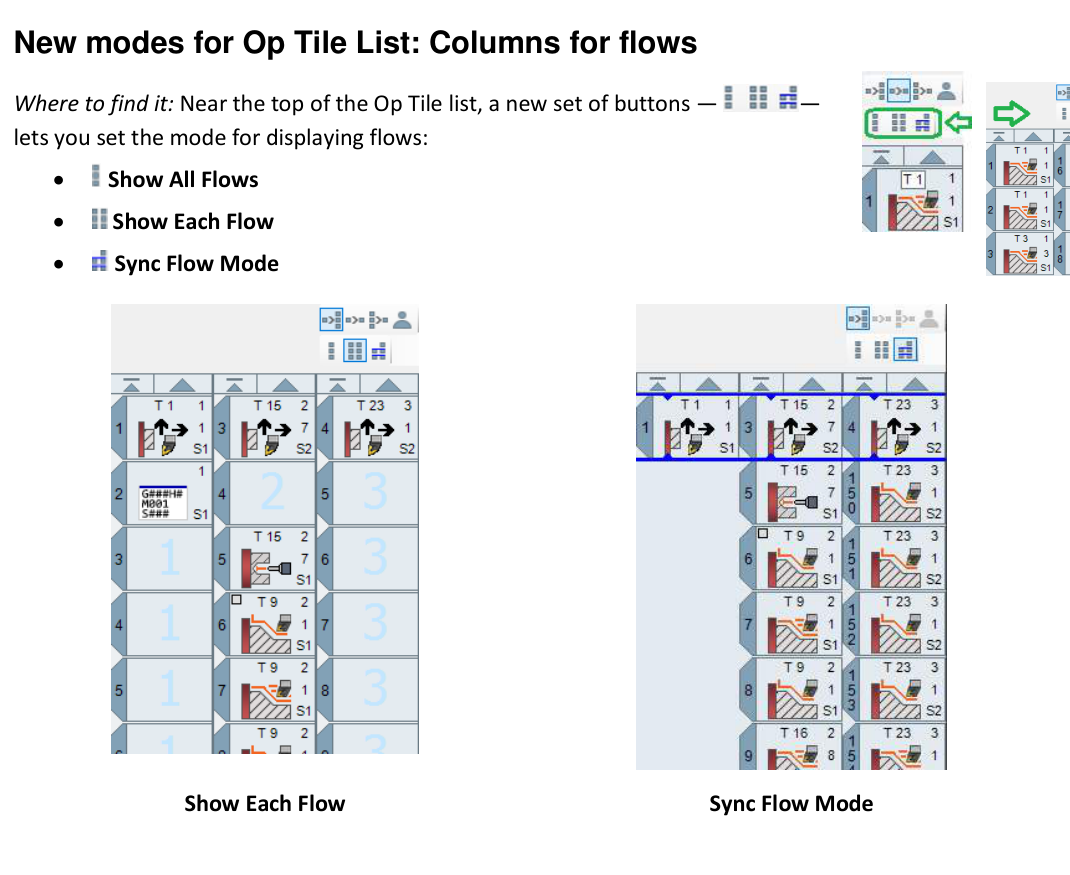
Figure 1 Choose the view that best exposes the MTM operation relationship
Source: What's New in GibbsCAM 2025, p. 21
Step 3 - Review Synchronized Relationships
1. Click Sync Flow Mode.
2. Follow the aligned rows and synchronization indicators across the displayed flows.
3. Identify missing, unexpected, or misaligned relationships for correction in the operation data.
Step 4 - Return to the Complete View
1. Click Show All Flows to return to the complete Op Tile list.
2. Confirm that operations that appeared absent in a specialized view are present in the full list.
3. Run the required simulation and post review if any operation or synchronization data was changed.
Expected Result
• The Op Tile list switches among all-flow, separate-flow, and synchronized display modes.
• Flow membership and synchronized relationships are easier to review without changing the operation sequence.
• Returning to Show All Flows restores the complete list view.
Related Video

Best Practices
• Begin and end the review in Show All Flows so the complete operation set is visible.
• Use Show Each Flow to audit flow membership and local sequence.
• Use Sync Flow Mode to inspect relationships that must coordinate across flows.
• Simulate and review posted output after changing operation order, flow assignment, or synchronization data.
Troubleshooting
• Problem: The Flow View buttons are not available.
Cause
• The current part or machine definition is not configured for supported MTM flows.
• The installed version predates GibbsCAM 2025 or the required MTM license is unavailable.
Resolution
Confirm GibbsCAM 2025, the MTM license and machine definition, then open an MTM part with defined flows and display the Op Tile list.
• Problem: Operations appear to be missing in a specialized view.
Cause
• Show Each Flow or Sync Flow Mode is filtering the visual arrangement.
• The operations belong to a different flow or are outside the current synchronized group.
Resolution
Switch to Show All Flows, locate the operations, and verify their flow assignment before changing any data.
• Problem: The flow columns do not match the expected operation sequence.
Cause
• An operation is assigned to the wrong flow.
• The underlying operation order differs from the expected process plan.
Resolution
Review the complete list, correct the operation's flow membership or sequence, then reopen Show Each Flow and verify the result.
• Problem: Sync Flow Mode does not show the expected relationship.
Cause
• The required synchronization is missing or incomplete.
• One of the related operations is assigned to an unexpected flow.
Resolution
Return to Show All Flows, verify both operations and their synchronization data, correct the setup, and review Sync Flow Mode again.
Related Articles
• Recommended Simulation Settings
• How to Create a Pack and Go File
Explore More from CAMCO
Visit the CAMCO website to learn more about:
• Downloads and Helpful Resources
Keywords
GibbsCAM 2025, MTM, Op Tile list, Show All Flows, Show Each Flow, Sync Flow Mode, flow columns, synchronization, operation review
Was this article helpful?
That’s Great!
Thank you for your feedback
Sorry! We couldn't be helpful
Thank you for your feedback
Feedback sent
We appreciate your effort and will try to fix the article