Summary
GibbsCAM 2025 adds separate Interface preferences for single-clicking an operation tile tab number or an operation tile. Either control can select the tile and redraw its toolpath in the Op List.
Table of Contents
- What Changed in GibbsCAM 2025
- Before You Begin
- Procedure
- Related Video
- Best Practices
- Troubleshooting
- Related Articles
What Changed in GibbsCAM 2025
Important: Redraw displays the operation's existing toolpath; it does not recalculate an edited or out-of-date operation. Recalculate first when process data changed.
Before You Begin
• Use GibbsCAM 2025 and open a part with at least one calculated operation.
• Display the Op List and confirm that the operation's current toolpath can be drawn.
• Decide whether the shortcut should apply to tile tab numbers, operation tiles, or both.
• Save the part before recalculating or changing operation data.
Procedure
Step 1 - Open the Interface Preferences
1. Choose File > Preferences.
2. Select Interface in the Preferences list.
3. Locate Tab Single Click Behavior and Tile Single Click Behavior in the upper-right area.
Step 2 - Configure Tab Single Click Behavior
1. Select Select Tile and Redraw Toolpath (Op List Only) to redraw when a tab number is clicked.
2. Use Select Tile when the tab should select without redrawing, or Do Nothing when no tab action is wanted.
3. Confirm the choice before moving to the tile setting.
Step 3 - Configure Tile Single Click Behavior
1. Select Select Tile and Redraw Toolpath (Op List Only) to redraw when the operation tile is clicked.
2. Use Select Tile when a tile click should select without redrawing.
3. Close Preferences when both controls match the intended workflow.
Step 4 - Test the One-Click Redraw
1. In the Op List, click the configured tab number or operation tile once.
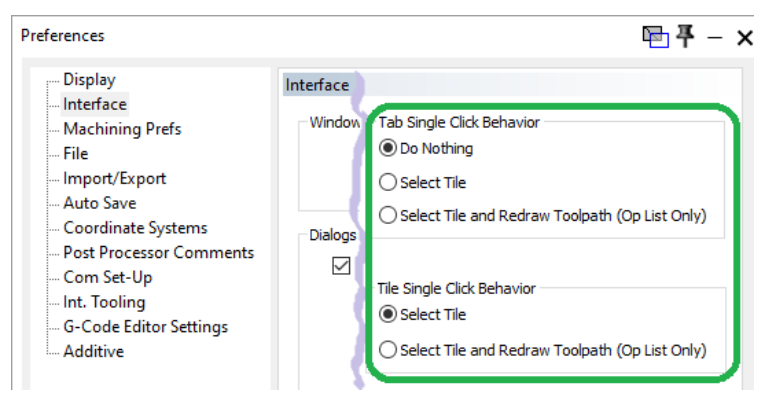
Figure 1 Set tab and tile single-click behavior independently
Source: What's New in GibbsCAM 2025, p. 22
2. Confirm that the correct tile is selected and its current toolpath is displayed.
3. Recalculate the operation first if its process, geometry, tool, or setup data has changed.
Expected Result
• A single click on the configured tab number or tile selects the operation and redraws its toolpath in the Op List.
• Tab and tile behavior can be configured independently.
• The displayed path matches the operation's latest calculated state.
Related Video

Best Practices
• Enable redraw only for the click targets used routinely in the shop workflow.
• Keep the tab set to Do Nothing when accidental tab clicks would disrupt review.
• Recalculate after changing geometry, process settings, tools, coordinate systems, stock, or fixtures.
• Use simulation for motion verification; one-click redraw is a display convenience, not a safety check.
Troubleshooting
• Problem: A single click selects the operation but does not redraw the toolpath.
Cause
• The applicable tab or tile preference is set to Select Tile.
• The click occurred outside the Op List or the operation has no calculated toolpath.
Resolution
Set the correct control to Select Tile and Redraw Toolpath (Op List Only), calculate the operation, and test it again in the Op List.
• Problem: The tab click works, but the tile click does not redraw, or the reverse.
Cause
• Tab Single Click Behavior and Tile Single Click Behavior are separate preferences.
• Only one control is configured for redraw.
Resolution
Return to File > Preferences > Interface and set both controls independently for the intended behavior.
• Problem: The displayed toolpath is out of date.
Cause
• The operation was edited but not recalculated.
• Geometry, tool, coordinate system, stock, or process data changed after the last calculation.
Resolution
Recalculate the operation, then click the configured tab or tile and verify the updated path before simulation or posting.
• Problem: Clicking a tab number does nothing.
Cause
• Tab Single Click Behavior is set to Do Nothing.
• A different click target or operation list is being used.
Resolution
Set Tab Single Click Behavior to Select Tile or Select Tile and Redraw Toolpath, then retest the tab number in the Op List.
Related Articles
• Recommended Simulation Settings
• How to Create a Pack and Go File
Explore More from CAMCO
Visit the CAMCO website to learn more about:
• Downloads and Helpful Resources
Keywords
GibbsCAM 2025, toolpath redraw, one click, Op List, operation tile, tab single click behavior, tile single click behavior, Interface preferences, select tile
Was this article helpful?
That’s Great!
Thank you for your feedback
Sorry! We couldn't be helpful
Thank you for your feedback
Feedback sent
We appreciate your effort and will try to fix the article