Summary
GibbsCAM 2024 adds Taper Angle Color and Curvature Color to the floating Task Bar. Each mode displays model values with a legend and configurable color ramp without changing the model.
Table of Contents
- What Changed in GibbsCAM 2024
- Before You Begin
- Procedure
- Related Video
- Best Practices
- Troubleshooting
- Related Articles
What Changed in GibbsCAM 2024
Important: Interpret colors only against the current legend, range, and calculation settings.
Before You Begin
• Use GibbsCAM 2024 or later and open the solid or surface to review.
• Show the floating Task Bar.
• Decide whether the review requires taper angle or curvature.
Procedure
Step 1 - Apply a Color Mode
1. On the floating Task Bar, open Color Mode.
2. Select Taper Angle Color or Curvature Color.
3. Rotate and zoom the model, then compare its colors with the active legend.
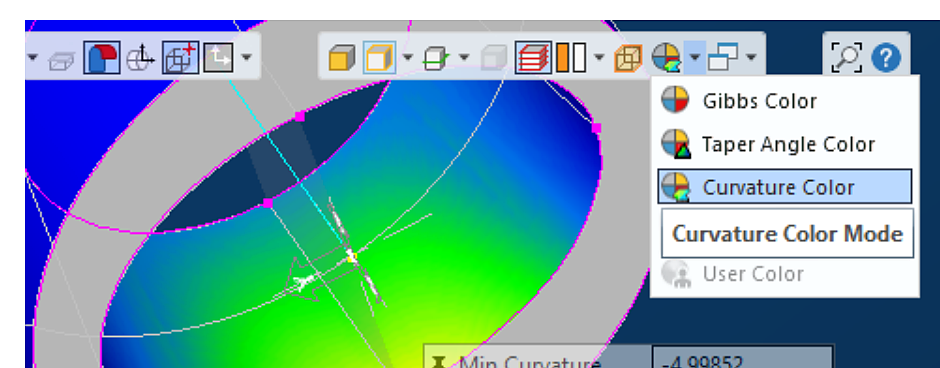
Figure 1 Select a color mode and read the model against its legend
Source: What's New in GibbsCAM 2024, p. 12
Step 2 - Set the Display
1. For Taper Angle Color, right-click the dialog title bar and choose 0 to 90 degrees or -90 to +90 degrees.
2. For Curvature Color, right-click the title bar and choose the calculation method and whether to show negative values.
3. Right-click the spectrum to open Color Ramp Editor and adjust the ramp when needed.
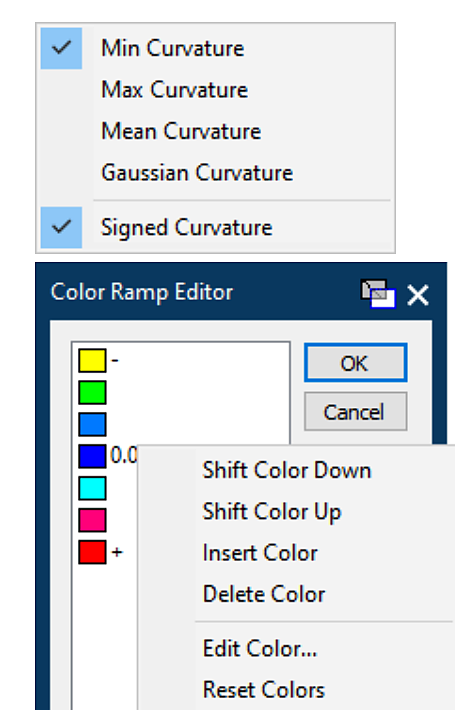
Figure 2 Set the curvature calculation and color ramp
Source: What's New in GibbsCAM 2024, p. 13
Step 3 - Record the Review
1. Confirm the legend, range, curvature method, signed setting, and color ramp.
2. Capture those settings with any screenshot or review note.
3. Return to the standard color mode when the review is complete.
Expected Result
• The model displays taper or curvature values with a clear legend.
• Recorded review evidence identifies the settings used.
Related Video
Best Practices
• Use the same settings when comparing revisions.
• Pin the legend before capturing a screenshot.
• Treat the color map as an analysis aid and verify critical geometry separately.
Troubleshooting
• Problem: The color modes are unavailable.
Cause
• The job is not open in GibbsCAM 2024 or later.
• The floating Task Bar or Color Mode menu is hidden.
Resolution
Confirm the version, show the floating Task Bar, and reopen Color Mode.
• Problem: The colors are difficult to interpret.
Cause
• The range, method, signed-value setting, or ramp does not match the review goal.
• The legend is hidden or reflects different settings.
Resolution
Show the legend, confirm the active settings, and reset or adjust the color ramp.
Related Articles
• Extracting Geometry from Solids
Explore More from CAMCO
Visit the CAMCO website to learn more about:
• Downloads and Helpful Resources
Keywords
GibbsCAM 2024, Taper Angle Color, Curvature Color, Color Ramp Editor, color map, legend, model analysis
Was this article helpful?
That’s Great!
Thank you for your feedback
Sorry! We couldn't be helpful
Thank you for your feedback
Feedback sent
We appreciate your effort and will try to fix the article