Summary
GibbsCAM 2026 adds Detect thicker than for supported multiaxis stock-based roughing. The control limits rest-material detection to regions that meet the entered thickness so the tool can skip unnecessary areas.
Table of Contents
What Changed in GibbsCAM 2026
Important: A value that is too large can exclude material that must be machined. Inspect the remaining stock and every skipped area before approving the operation.
Before You Begin
• Use GibbsCAM 2026 with the required 5-Axis and supported multiaxis roughing capability.
• Define accurate stock, part geometry, tools, holders, fixtures, and preceding operations.
• Save a copy of the part and retain the current calculated operation as a baseline.
• Identify the smallest rest-material thickness that the job still requires you to remove.
Procedure
Step 1 - Record the Baseline
1. Duplicate the affected stock-based roughing operation.
2. Record the stock source, tool, allowance, tolerance, stepover, stepdown, and estimated cycle time.
3. Calculate and simulate the baseline, then retain its remaining-stock result for comparison.
Step 2 - Set the Thickness Filter
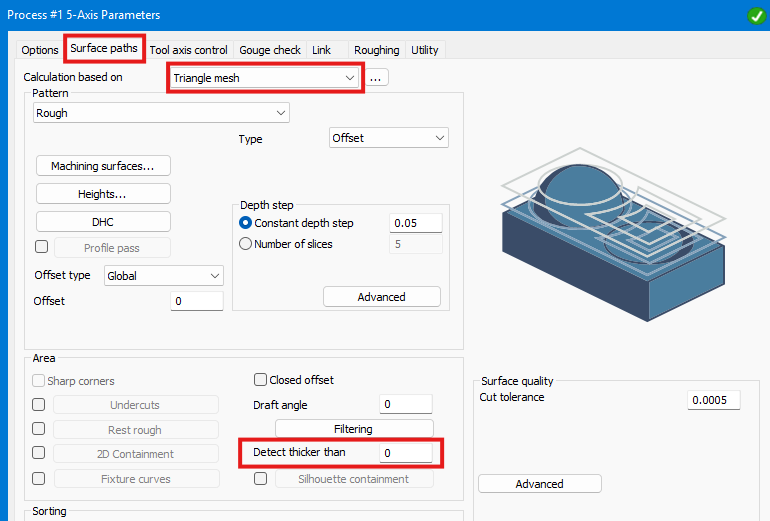
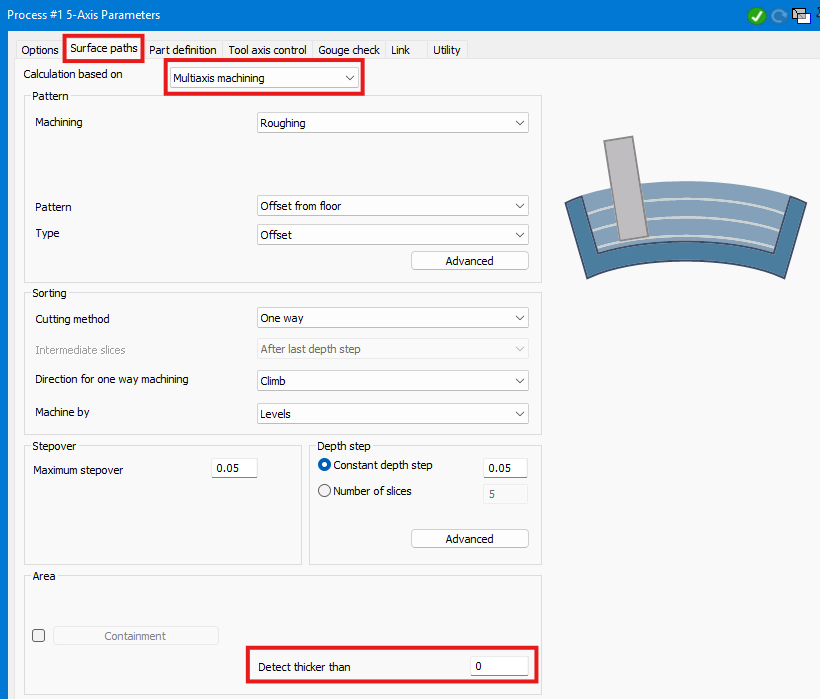
1. Open the operation and select Surface Paths > Calculation Based On: Triangle Mesh or Multiaxis Machining > Area > Detect thicker than.
2. Enter a conservative thickness that is smaller than the material the operation must remove.
3. Regenerate the operation.
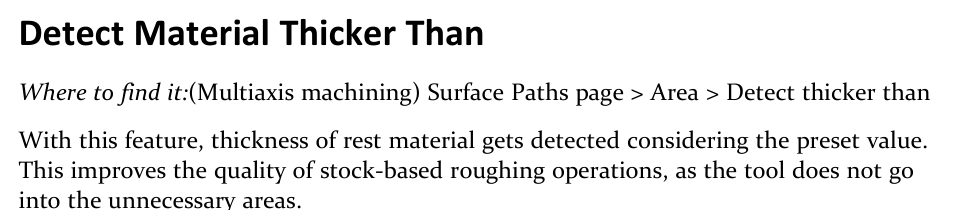
Figure 1 Use a preset threshold to exclude unnecessary rest-material areas
Source: What's New in GibbsCAM 2026, p. 40
Step 3 - Inspect the Filtered Result
1. Compare the new toolpath and estimated cycle time with the baseline.
2. Use remaining-stock display and simulation to inspect every area omitted by the filter.
3. Reduce the threshold and recalculate if required material is skipped or the result approaches the job tolerance.
Step 4 - Validate the Output
1. Run Op Simulation and Machine Simulation with the production stock, fixtures, tool, and holder.
2. Post with the approved postprocessor and review the complete motion and machine limits.
3. Complete the shop's controlled prove-out before production release.
Expected Result
• The operation machines rest material at or above the selected thickness.
• Areas below the threshold are skipped without leaving stock that violates the job requirement.
• Simulation and posted output remain collision-free and within machine limits.
Best Practices
• Start with a small threshold and increase it only after measuring the effect.
• Revalidate the filter whenever stock, tolerances, tools, or preceding operations change.
• Inspect remaining stock instead of judging only the displayed toolpath.
• Retain the baseline operation until the filtered result is approved.
Troubleshooting
• Problem: Required rest material is skipped.
Cause
• The Detect thicker than value is larger than the material that must be removed.
• The stock source or preceding operation does not represent the actual remaining material.
Resolution
Reduce the threshold, correct the stock or preceding result, regenerate, and inspect all required rest areas in simulation.
• Problem: The toolpath does not change.
Cause
• The entered threshold does not exclude any detected region.
• The operation was not fully regenerated or does not use the supported stock-based roughing method.
Resolution
Confirm the supported operation and stock source, enter a controlled test value, and force a full recalculation before comparing results.
• Problem: Unexpected areas are still machined.
Cause
• Those areas meet the thickness threshold.
• Allowance, tolerance, or the stock model changes the calculated rest-material thickness.
Resolution
Inspect the measured remaining stock, then correct the stock, allowance, tolerance, or threshold and recalculate conservatively.
• Problem: Simulation and the calculated rest result do not agree.
Cause
• Simulation uses different stock or operation history.
• The tool, holder, fixture, or operation selection is incomplete or outdated.
Resolution
Synchronize the stock and operation sequence, update the complete setup, and rerun Op and Machine Simulation before posting.
Related Articles
• Recommended Simulation Settings
• How to Create a Pack and Go File
Explore More from CAMCO
Visit the CAMCO website to learn more about:
• Downloads and Helpful Resources
Keywords
GibbsCAM 2026, 5-Axis, multiaxis roughing, Area Roughing, Detect thicker than, rest material, stock-based roughing, remaining stock, thickness threshold
Was this article helpful?
That’s Great!
Thank you for your feedback
Sorry! We couldn't be helpful
Thank you for your feedback
Feedback sent
We appreciate your effort and will try to fix the article