Summary
GibbsCAM 2024 adds Extend cuts for stock to 5-Axis Roughing with the Offset from ceiling pattern. The option extends roughing slices toward the top of the defined stock so material above the ceiling can be included in the path.
Table of Contents
What Changed in GibbsCAM 2024
Important: The result depends on the stock, ceiling, and containment definitions. Verify all three before releasing the operation.
Before You Begin
• Use GibbsCAM 2024 with the required 5-Axis machining option and the approved machine definition and post.
• Define accurate stock and confirm the intended ceiling and containment geometry.
• Select the production tool and complete holder assembly.
• Save a working copy and retain a baseline path for comparison.
Procedure
Step 1 - Select the Supported Roughing Mode
1. Create or edit the operation and set Calculation based on to Multiaxis machining.
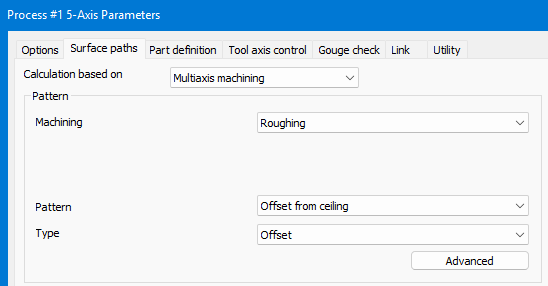
2. Select Roughing and choose Offset from ceiling as the roughing pattern.
3. Confirm the tool, stock, machining geometry, and containment selections.
Step 2 - Verify Stock and Ceiling
1. Display the stock and confirm that its top matches the material to be removed.
2. Review the ceiling and confirm that it represents the intended lower reference for the offset slices.
3. Correct gaps, overlaps, or an incorrect stock body before calculating the path.
Step 3 - Extend the Cuts
1. Open Surface paths, select Advanced, and enable Extend cuts for stock.
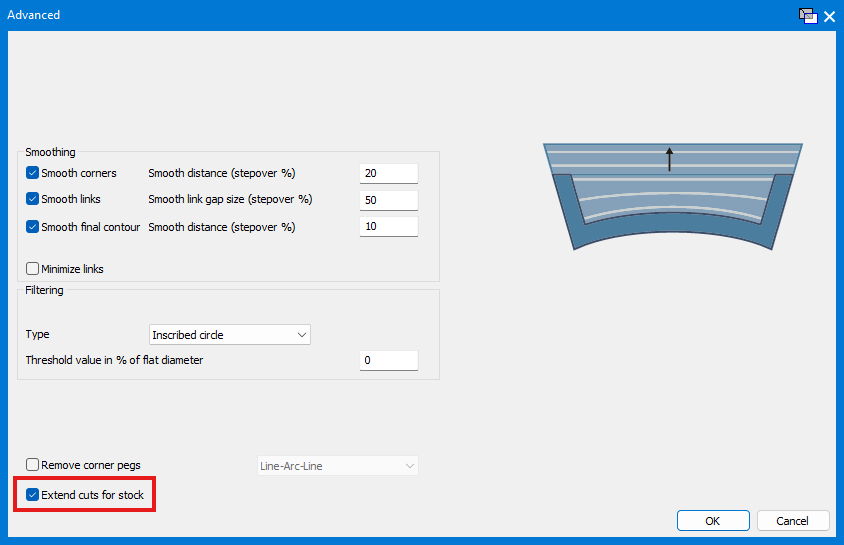
2. Recalculate the operation.
3. Compare the extended path with the saved baseline.
Step 4 - Validate the Result
1. Confirm that the slices reach the required stock top without exceeding containment.
2. Inspect remaining material, holder clearance, link motion, and machine travel.
3. Run Op Simulation and Machine Simulation, then review posted motion before prove-out.
Expected Result
• The roughing slices extend from the ceiling-based path to the required stock top.
• The toolpath remains within the intended containment and leaves the expected remaining material.
• Simulation shows reachable motion with the required tool and holder clearance.
Best Practices
• Use an accurate stock model; the extension follows the defined stock, not an assumed blank.
• Change only Extend cuts for stock when comparing the result with a baseline.
• Inspect the top, sides, and containment boundaries for extra cutting or air motion.
• Revalidate the operation after changing stock, ceiling, containment, tool, or setup geometry.
Troubleshooting
• Problem: Extend cuts for stock is unavailable.
Cause
• The operation is not using Multiaxis Roughing with Offset from ceiling.
• The GibbsCAM version or licensed option does not support the control.
Resolution
Confirm GibbsCAM 2024 and the required license, then select Multiaxis machining, Roughing, and Offset from ceiling before reopening Surface paths > Advanced.
• Problem: The cuts stop below the stock top.
Cause
• Extend cuts for stock is disabled.
• The stock top or ceiling is defined lower than intended.
Resolution
Enable the option, display the stock and ceiling, correct their definitions, and recalculate the operation.
• Problem: The path extends outside the intended area.
Cause
• Containment is missing or incorrect.
• The stock body includes material outside the machining region.
Resolution
Correct the containment and stock selections, recalculate, and inspect every boundary before simulation and posting.
• Problem: Unexpected stock remains or excessive air cutting appears.
Cause
• The stock model does not match the physical blank.
• The ceiling, step values, or machining geometry do not match the intended removal area.
Resolution
Update the stock and operation inputs, compare with the baseline, and use simulation to verify remaining material before release.
Related Articles
• Recommended Simulation Settings
• How to Create a Pack and Go File
Explore More from CAMCO
Visit the CAMCO website to learn more about:
• Downloads and Helpful Resources
Keywords
GibbsCAM 2024, 5-Axis Roughing, Extend cuts for stock, Offset from ceiling, stock top, ceiling, containment, remaining material
Was this article helpful?
That’s Great!
Thank you for your feedback
Sorry! We couldn't be helpful
Thank you for your feedback
Feedback sent
We appreciate your effort and will try to fix the article