Summary
GibbsCAM 2024 adds Restrict WFOs to the Workfixtures tab in the Post dialog. The Restrict Workfixtures Editor separates usable offsets from restricted offsets so programmers can limit the WFO choices available for the current machine and post.
Table of Contents
What Changed in GibbsCAM 2024
Important: Restricting an offset removes it from the available WFO choices. Confirm every required setup offset before posting or changing an existing part.
Before You Begin
• Use GibbsCAM 2024 or later with the approved machine definition and WFO-capable post.
• Confirm the workfixture offsets approved for the target machine, control, and setup.
• Review the part's coordinate systems, workfixture assignments, and grouping method.
• Save the part and create a baseline NC file before changing WFO availability.
Procedure
Step 1 - Open the Workfixtures Tab
1. Open the Post dialog and verify the active machine and post.
2. Select the Workfixtures tab.
3. In Options, select Restrict WFOs.
Step 2 - Review Available Offsets
1. Review the Usable WFOs and Restricted WFOs lists in the Restrict Workfixtures Editor.
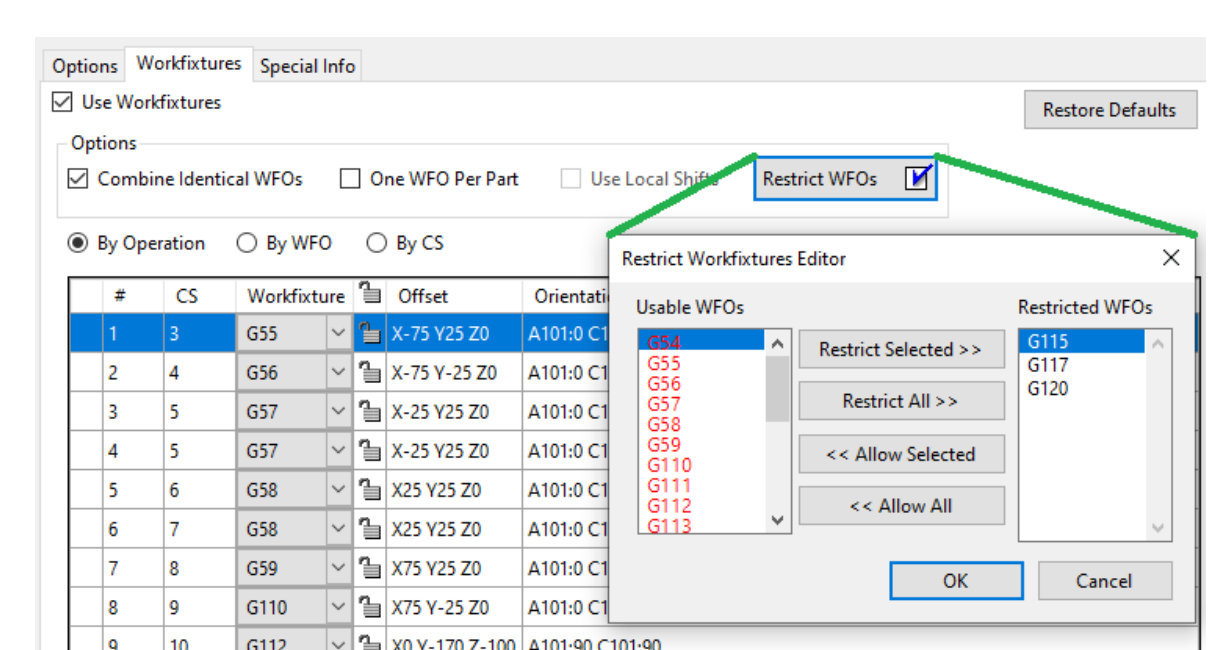
Figure 1 Move workfixture offsets between the usable and restricted lists Source: What's New in GibbsCAM 2024, p. 20
2. Compare both lists with the approved offsets for the setup and control.
3. Stop and verify the machine or post if an expected offset is absent from both lists.
Step 3 - Restrict or Allow Offsets
1. Use Restrict Selected or Restrict All to move offsets into Restricted WFOs.
2. Use Allow Selected or Allow All to return approved offsets to Usable WFOs.
3. Confirm that every offset required by the setup remains usable, then select OK.
4. Return to the Workfixtures tab. A checkmark on Restrict WFOs means at least one possible offset is unavailable.
Step 4 - Verify Assignments and Output
1. Review each workfixture assignment and confirm that every operation or coordinate-system group uses an approved offset.
2. Post a controlled test file and compare all work offset calls with the setup sheet and baseline.
3. Complete the normal posted-code review and machine prove-out before production release.
Expected Result
• Approved offsets remain under Usable WFOs and excluded offsets appear under Restricted WFOs.
• Restrict WFOs shows a checkmark whenever at least one possible offset is restricted.
• Every part assignment and posted work offset matches the approved setup.
Best Practices
• Restrict only offsets that should be unavailable for the active machine or shop standard.
• Review WFO restrictions when opening an existing or shared part.
• Compare posted offset calls with the setup sheet before releasing the program.
• Request a validated post or machine update when a required offset is not defined; do not substitute an unapproved WFO.
Troubleshooting
• Problem: Restrict WFOs is missing or unavailable.
Cause
• The active post or machine does not support the workfixture workflow.
• Workfixtures are disabled, or a legacy or incorrect post is selected.
Resolution
Confirm the approved machine and post, enable the required workfixture setup, and use a supported WFO-capable post. Contact the post developer when the control should be available.
• Problem: A required offset is listed under Restricted WFOs.
Cause
• The offset was restricted in the saved part.
• Another user changed the WFO availability for the current file.
Resolution
Move the approved offset back to Usable WFOs, confirm the remaining restrictions, and repost the controlled test file.
• Problem: A required offset does not appear in either list.
Cause
• The active post or machine does not define the requested offset.
• A different machine or post is active.
Resolution
Verify the machine, post, and qualified revision. Request a validated update if the offset is required; do not substitute an unapproved WFO.
• Problem: The posted work offset differs from the expected assignment.
Cause
• The Workfixtures table, grouping mode, or coordinate-system assignment differs from the intended setup.
• The post maps the selected WFO differently than expected.
Resolution
Stop release. Review the Workfixtures table, coordinate systems, active post, and both WFO lists. Correct the source assignment or obtain a validated post update, then repost and verify the result.
Related Articles
• Error Unable to Read Post Processor
• How to Create a Pack and Go File
Explore More from CAMCO
Visit the CAMCO website to learn more about:
• Downloads and Helpful Resources
Keywords
GibbsCAM 2024, Workfixtures, workfixture offset, WFO, Restrict WFOs, Restrict Workfixtures Editor, Usable WFOs, Restricted WFOs, NC output
Was this article helpful?
That’s Great!
Thank you for your feedback
Sorry! We couldn't be helpful
Thank you for your feedback
Feedback sent
We appreciate your effort and will try to fix the article