Summary
GibbsCAM 2025 gives TMS full Work Fixture Offset (WFO) support in the Post Processor Workfixtures tab. Use the tab to organize coordinate systems and offsets, then verify the resulting NC output with the approved post and machine definition.
Table of Contents
What Changed in GibbsCAM 2025
Important: A visible Workfixtures option does not prove that the active post outputs the required codes. Compare the complete posted program with the setup plan and control specification.
Before You Begin
• Use GibbsCAM 2025 with the CAMCO-approved TMS post and machine definition.
• Save a working copy that contains representative coordinate systems, offsets, orientations, and local shifts when applicable.
• Confirm the control's supported work-offset numbering, activation, cancellation, reset, and local-shift behavior.
• Retain a known-good posted program or approved post specification for comparison.
Procedure
Step 1 - Open the Workfixtures Configuration
1. Open the Post Processor dialog and select the Workfixtures tab.
2. Enable Use Workfixtures when the approved TMS workflow requires WFO output.
3. Confirm that the active post and MDD match the target machine and control.
Step 2 - Review the WFO Options
1. Review Combine Identical WFOs, One WFO Per Part, Use Local Shifts, and Restrict WFOs against the approved setup.
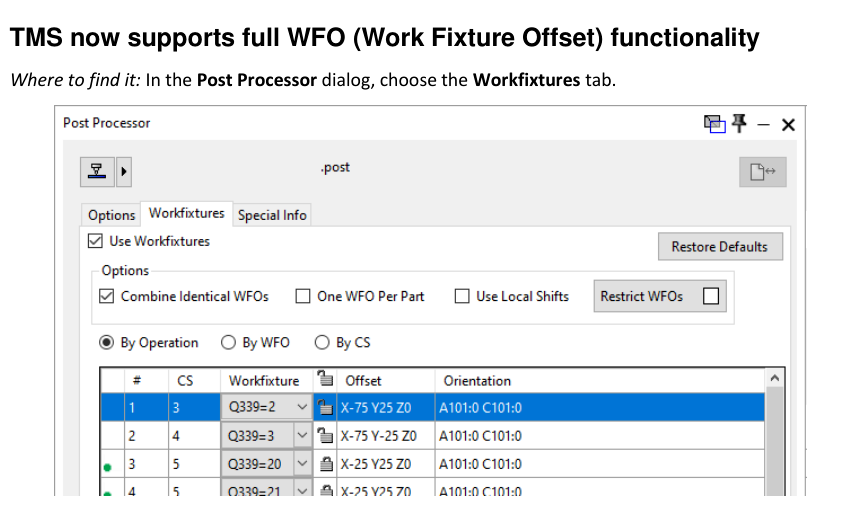
Figure 1 Review WFO organization and output with the approved post
Source: What's New in GibbsCAM 2025, p. 25
2. Choose the required organization by operation, WFO, or coordinate system.
3. Change only options that the post owner has validated for the target control.
Step 3 - Verify Every Workfixture Row
1. Compare each coordinate system, workfixture identifier, offset, and orientation with the setup plan.
2. Check repeated offsets, rotary orientations, and local shifts for unintended grouping or reuse.
3. Resolve missing or conflicting assignments before posting.
Step 4 - Post and Validate the Output
1. Post the nonproduction test part with the approved post revision.
2. Verify WFO activation, local shifts, rotary orientation, cancellation, reset, and safe restart behavior as applicable.
3. Complete simulation, posted-code review, and the shop's controlled prove-out before production use.
Expected Result
• The Workfixtures tab lists the intended coordinate systems, workfixtures, offsets, and orientations.
• The approved TMS post outputs each WFO and related local shift exactly as specified for the target control.
• Simulation and posted-code review confirm safe activation, cancellation, reset, and restart behavior.
Best Practices
• Treat the post, MDD, Workfixtures settings, and setup plan as one controlled configuration.
• Test representative repeated offsets, local shifts, and rotary orientations before releasing a new post revision.
• Compare the complete program; do not validate only the first work offset.
• Include the part, post revision, MDD, and expected output in a Pack and Go package when requesting support.
Troubleshooting
• Problem: The Workfixtures tab is unavailable or Use Workfixtures is disabled.
Cause
• The active post or machine definition does not support the intended workflow.
• The wrong post, MDD, or GibbsCAM version is active.
Resolution
Confirm GibbsCAM 2025, the approved TMS post and MDD, then reopen the Post Processor dialog. Contact the post owner if WFO support is not implemented.
• Problem: Workfixture output is missing or uses unexpected codes.
Cause
• The WFO assignment or grouping option does not match the setup.
• The active post does not implement the intended control format.
Resolution
Stop release. Compare the Workfixtures table with the setup plan and have the post owner correct and validate the output. Do not use hand edits as the permanent fix.
• Problem: Offsets are combined or repeated unexpectedly.
Cause
• Combine Identical WFOs or One WFO Per Part is not set as intended.
• The coordinate systems share an offset or orientation that the post groups together.
Resolution
Review the grouping options and every Workfixtures row, correct the source assignments, repost, and compare the complete WFO sequence.
• Problem: A local shift or rotary orientation is incorrect.
Cause
• Use Local Shifts is not configured for the approved workflow.
• The coordinate system, orientation, post mapping, or machine setup differs from the test plan.
Resolution
Stop release. Correct the coordinate-system or post configuration, then repeat simulation and posted-code validation with the target machine setup.
Related Articles
• How to Create a Pack and Go File
Explore More from CAMCO
Visit the CAMCO website to learn more about:
• Downloads and Helpful Resources
Keywords
GibbsCAM 2025, TMS, WFO, Work Fixture Offset, Workfixtures, Post Processor, coordinate system, local shift, rotary orientation, MDD, posted output
Was this article helpful?
That’s Great!
Thank you for your feedback
Sorry! We couldn't be helpful
Thank you for your feedback
Feedback sent
We appreciate your effort and will try to fix the article