Summary
GibbsCAM 2025 machine definitions can set a maximum spindle RPM for live-tool and part-spindle stations. When programmed RPM exceeds the configured limit, GibbsCAM produces a program error.
Table of Contents
What Changed in GibbsCAM 2025
Important: Max RPM is a GibbsCAM program-error threshold. It does not replace controller limits, machine interlocks, accessory ratings, workholding limits, or posted-code review.
Before You Begin
• Use GibbsCAM 2025 and make a controlled backup of the approved machine definition.
• Have the machine builder, spindle, driven-tool, workholding, and accessory limits available.
• Identify the authorized MDD owner and the approved maximum for each spindle role and configuration.
• Prepare a nonproduction test part with one operation below the proposed limit and one above it.
Procedure
Step 1 - Establish the Approved Limits
1. Identify the physical maximum RPM for each applicable spindle role.
2. Apply any lower limit imposed by a driven-tool unit, chuck, collet, workholding device, accessory, or setup.
3. Record the source document and revision used for the MDD value.
Step 2 - Configure the Applicable Station
1. In Machine Manager, open the Tool Station tab for a station with Live Tool enabled and set Max RPM to the approved limit.
2. Open the Part Station tab for a station with Spins Part enabled and set Max RPM to the approved limit.
3. Save the MDD through the shop's authorized machine-definition workflow.
Step 3 - Test the Program Error
1. Calculate the below-limit test operation and confirm that no maximum-RPM program error appears.
2. Calculate the above-limit test operation and confirm that GibbsCAM produces the expected program error.
3. Verify that the active station, spindle role, tool, and MDD match the test plan.
Step 4 - Correct and Validate the Program
1. Reduce programmed RPM to an approved value; do not raise the MDD limit merely to clear the error.
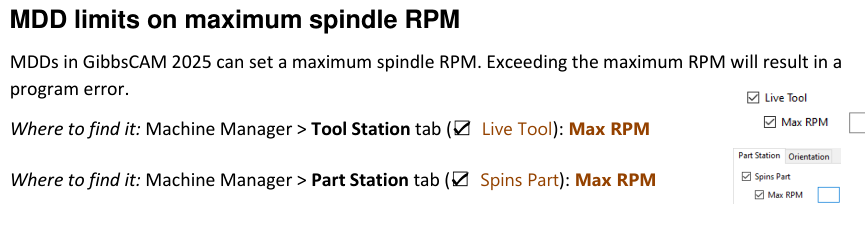
Figure 1 Maintain station limits through the approved MDD workflow
Source: What's New in GibbsCAM 2025, p. 29
2. Regenerate affected operations and run complete simulation.
3. Repost and verify spindle commands, caps, ranges, synchronization, workholding, and safe motion before prove-out.
Expected Result
• Each applicable Tool Station or Part Station contains the approved maximum RPM.
• An operation below the limit calculates without the maximum-RPM error.
• An operation above the limit produces a program error and is corrected before release.
Best Practices
• Use the lowest applicable verified limit for the active spindle, attachment, workholding, and setup.
• Keep MDD changes under revision control and restrict them to authorized owners.
• Repeat below-limit and above-limit tests after changing a station, spindle role, MDD, or GibbsCAM build.
• Retain controller and physical safeguards; the GibbsCAM error is one layer of the validation process.
Troubleshooting
• Problem: A maximum-RPM program error appears unexpectedly.
Cause
• Programmed RPM exceeds the active station's Max RPM.
• A lower attachment or setup limit is intentionally stored in the MDD, or the wrong station is active.
Resolution
Confirm the active MDD, station, spindle role, and approved limit. Reduce the programmed RPM or route any configuration correction through the authorized MDD owner.
• Problem: An operation above the limit does not produce the expected error.
Cause
• Max RPM is missing, disabled, set on the wrong station, or higher than the test speed.
• Live Tool or Spins Part is not enabled, or a different MDD is active.
Resolution
Confirm the active MDD and station settings, correct the limit through the MDD owner, and repeat the controlled below-limit and above-limit tests.
• Problem: The correct station for Max RPM is unclear.
Cause
• The operation uses a different spindle role than expected.
• The tool or part station assignment does not match the machine configuration.
Resolution
Review the operation, machine kinematics, Tool Station Live Tool setting, and Part Station Spins Part setting with the machine-definition owner before assigning the limit.
• Problem: An edited Max RPM value has no effect.
Cause
• The changed MDD was not saved or is not the active machine definition.
• The operation was not regenerated after the machine-definition change.
Resolution
Activate the approved revised MDD, reopen the part if required, regenerate the test operations, and repeat the error check before production use.
Related Articles
• Recommended Simulation Settings
• How to Create a Pack and Go File
Explore More from CAMCO
Visit the CAMCO website to learn more about:
• Downloads and Helpful Resources
Keywords
GibbsCAM 2025, Machine Manager, MDD, Max RPM, maximum spindle RPM, Tool Station, Live Tool, Part Station, Spins Part, program error, spindle limit
Was this article helpful?
That’s Great!
Thank you for your feedback
Sorry! We couldn't be helpful
Thank you for your feedback
Feedback sent
We appreciate your effort and will try to fix the article