Summary
GibbsCAM 2025 expands the VoluMill and 5-Axis data available in Operation Manager and Process Manager. Add only the fields needed for the review, then confirm each value's units, source, and editability.
Table of Contents
What Changed in GibbsCAM 2025
Important: A visible field is not necessarily editable. If a Manager permits a change, recalculate the affected operation and verify the complete toolpath before posting.
Before You Begin
• Use GibbsCAM 2025 with the required VoluMill or 5-Axis product licenses.
• Open a representative part with current VoluMill or 5-Axis processes and calculated operations.
• Save a working copy before changing Manager columns or editable process data.
• Define the review question so only the required fields are added.
Procedure
Step 1 - Open the Appropriate Manager
1. Open Operation Manager to review operation-level data or Process Manager to review process data.
2. Confirm that the selected rows are VoluMill or 5-Axis operations or processes.
3. Customize the visible headers and add the fields required for the review.
Step 2 - Review VoluMill Data
1. Review the fields available for the selected VoluMill row.
2. Depending on the operation and Manager, available values can include depth, Z step, passes, entry feed, speed, maximum RPM, cutting feed, stock allowances, tool, pitch, and entry or exit data.
3. Confirm each value's units and the operation or process that supplies it.
Step 3 - Review 5-Axis Data
1. Open a representative 5-Axis model and add the fields needed for the review.
2. Confirm the meaning, units, source process, and read-only or editable status of each field.
3. Do not assume that every 5-Axis process exposes the same field set.
Step 4 - Validate Any Data Changes
1. Make changes only in a saved test copy and only where the Manager allows editing.
2. Recalculate every affected operation and review the operation sequence and displayed toolpaths.
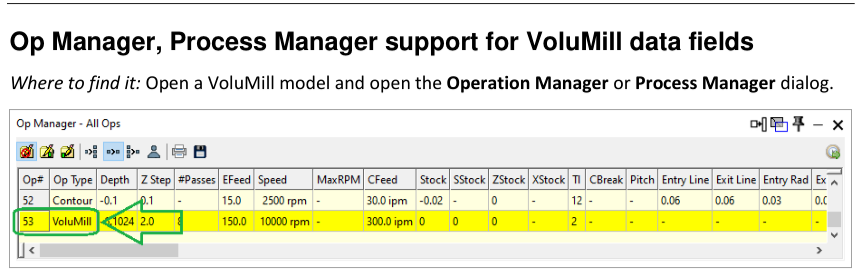
Figure 1 Expose only the Manager fields needed for the review
Source: What's New in GibbsCAM 2025, p. 29
3. Run simulation and posted-code review before releasing the updated part.
Expected Result
• Operation Manager or Process Manager displays the requested VoluMill or 5-Axis fields.
• The reviewer understands each field's units, source, and editability.
• Any permitted change is reflected in recalculated operations, simulation, and posted output.
Best Practices
• Show only the fields needed for the current review so important values remain readable.
• Use the Manager that owns the required level of data: operation or process.
• Record units and field definitions when sharing a customized Manager view.
• Recalculate and simulate after editing process or operation data from a Manager.
Troubleshooting
• Problem: Expected VoluMill or 5-Axis fields are missing.
Cause
• The part does not contain the required process type.
• The field is hidden, available only in the other Manager, or unsupported by the installed product or build.
Resolution
Open a representative model, customize the headers, and check both Operation Manager and Process Manager. Confirm version and license support.
• Problem: A field is blank or shows an unexpected value.
Cause
• The selected process does not supply that value.
• The operation is not calculated or its process data is incomplete.
Resolution
Confirm the selected row and process, complete the required inputs, recalculate the operation, and reopen or refresh the Manager view.
• Problem: The field's units or meaning are unclear.
Cause
• The column label is abbreviated or depends on the process type.
• The active part units or field definition have not been confirmed.
Resolution
Check the Manager documentation and process dialog, confirm the active units, and ask CAMCO to identify any field that remains ambiguous.
• Problem: Editing a Manager value does not update the toolpath as expected.
Cause
• The field is read-only or the change belongs to a different process level.
• The affected operation was not recalculated.
Resolution
Confirm editability and the owning process, make the change in the correct location, recalculate, and compare the complete path with the saved baseline.
Related Articles
• Start Side Selection in VoluMill
• How to Create a Pack and Go File
Explore More from CAMCO
Visit the CAMCO website to learn more about:
• Downloads and Helpful Resources
Keywords
GibbsCAM 2025, Operation Manager, Process Manager, VoluMill, 5-Axis, data fields, columns, depth, Z step, feed, speed, MaxRPM, stock allowance, operation review
Was this article helpful?
That’s Great!
Thank you for your feedback
Sorry! We couldn't be helpful
Thank you for your feedback
Feedback sent
We appreciate your effort and will try to fix the article