Summary
GibbsCAM 2024 integrates the Sandvik CoroPlus Tool Library. The importer can transfer available tools, holders, assemblies, and cutting data from an active CoroPlus account into GibbsCAM for review and use in machining operations.
Table of Contents
- What Changed in GibbsCAM 2024
- Before You Begin
- Procedure
- Related Video
- Best Practices
- Troubleshooting
- Related Articles
What Changed in GibbsCAM 2024
Important: The importer requires a valid, active CoroPlus account containing the required tool data. Review every imported component, dimension, unit, and cutting value before production use.
Before You Begin
• Use GibbsCAM 2024 or later and confirm that the CoroPlus Tool Library plug-in is installed and available.
• Provide internet access and a valid, active CoroPlus account.
• Confirm that the account contains the required tools, holders, assemblies, and cutting data.
• Have the manufacturer record and approved shop standards available for comparison after import.
Procedure
Step 1 - Open the CoroPlus Importer
1. Open Plug-Ins > Main Tools > CoroPlus Tool Library.
2. Alternatively, double-click a process tile and select CoroPlus Tool Importer from the process flyout.
3. Complete the account connection or sign-in prompt when required.
Step 2 - Select the Tool Assembly
1. Locate the required cutter or assembly in the connected CoroPlus library.
2. Review the available cutter, holder, assembly, and cutting-data content.
3. Confirm that the selection matches the intended operation, material, and manufacturer record.
Step 3 - Send the Selection to GibbsCAM
1. Select Send to GibbsCAM after the required assembly and available data have been reviewed.
2. Allow the import to complete before editing or closing the new GibbsCAM tool.
3. Open the imported tool and compare its components and data with the CoroPlus selection.
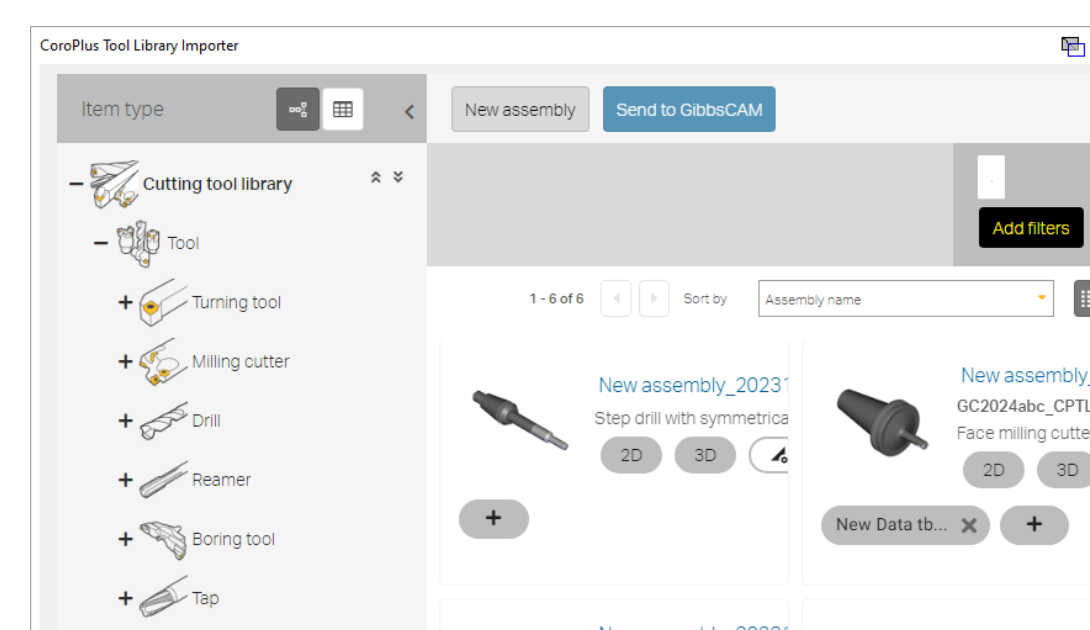
Figure 1 Select the required CoroPlus content and send the reviewed assembly to GibbsCAM
Source: What's New in GibbsCAM 2024, p. 17
Step 4 - Verify the Imported Tool
1. Confirm the tool type, dimensions, holder components, orientation, and units.
2. Review any attached cutting data for the intended cutter, grade, work material, and application.
3. Correct or reimport incomplete or mismatched data before assigning the tool to an operation.
Step 5 - Validate the Operation
1. Assign the reviewed tool to the intended process and recalculate the operation.
2. Render or simulate the operation and check cutter, holder, shank, stock, and workholding clearance.
3. Review the posted output and complete the normal shop prove-out before production use.
Expected Result
• The CoroPlus importer opens from either supported GibbsCAM entry point.
• The selected assembly appears in GibbsCAM with the available cutter, holder, and cutting-data content.
• The reviewed imported tool calculates, simulates, and posts as intended for the approved operation.
Related Video
Best Practices
• Confirm the CoroPlus account, catalog item, assembly revision, and material application before import.
• Verify units and every critical dimension immediately after import.
• Treat imported cutting values as application data requiring approval, not automatic production settings.
• Save approved imported tools in controlled tool lists so later users can identify their source and revision.
Troubleshooting
• Problem: The CoroPlus Tool Library command is missing.
Cause
• The plug-in is not installed, enabled, or available for the current GibbsCAM configuration.
• The command is being sought in a different menu or process flyout.
Resolution
Check Plug-Ins > Main Tools and the process flyout. Confirm the GibbsCAM 2024 plug-in installation and seat configuration, then contact CAMCO if the command remains unavailable.
• Problem: CoroPlus does not connect or show the required content.
Cause
• Internet access is unavailable or blocked.
• The account is inactive, signed out, or does not contain the requested tool, holder, assembly, or cutting data.
Resolution
Confirm network access and connect with the intended active account. Refer account, credential, catalog, and content issues to the CoroPlus administrator or provider.
• Problem: The imported assembly is incomplete or uses unexpected values.
Cause
• The selected CoroPlus record did not include the missing component or data set.
• A different assembly, unit system, or application record was sent to GibbsCAM.
Resolution
Return to the importer, confirm the complete selection, and reimport if necessary. Compare each component, dimension, unit, and cutting value with the manufacturer record before use.
Related Articles
• How to Save and Load Process or Tool Lists
Explore More from CAMCO
Visit the CAMCO website to learn more about:
• Downloads and Helpful Resources
Keywords
GibbsCAM 2024, CoroPlus Tool Library, CPTL, CoroPlus Tool Importer, tool assembly, tool holder, cutting data, Send to GibbsCAM
Was this article helpful?
That’s Great!
Thank you for your feedback
Sorry! We couldn't be helpful
Thank you for your feedback
Feedback sent
We appreciate your effort and will try to fix the article