Summary
GibbsCAM 2026 appearance settings can assign a metallic rendering option in addition to color. Use the Colors tab for model and tooling items and the Sim tab for Simulation states.
Table of Contents
- What Changed in GibbsCAM 2026
- Before You Begin
- Procedure
- Related Video
- Best Practices
- Troubleshooting
- Related Articles
What Changed in GibbsCAM 2026
Important: Metallic rendering changes only the displayed appearance. It does not assign a physical material or change machining properties.
Before You Begin
• Use GibbsCAM 2026 and open a part that contains the items or Simulation states to review.
• Record the active appearance configuration and current color or metallic choices.
• Determine whether the target is a Color item or a Simulation state.
• Save reusable interface settings when the same appearance must be shared or restored.
Procedure
Step 1 - Open Appearance Settings
1. Open File > Preferences.
2. Under Display, choose Edit Appearance Settings.
3. Select the configuration to edit or duplicate the configuration before making broader changes.
Step 2 - Select the Appearance Entry
1. Use the Colors tab for workpieces, cutting tools, shanks, holders, intermediate tooling, fixtures, and similar items.
2. Use the Sim tab for Simulation states such as Target, ActiveOp, Op, and Clash.
3. Locate the exact entry that controls the displayed item or state.
Step 3 - Apply and Review the Appearance
1. Keep or change the color, then choose the required metallic option for the entry.
2. Apply the change and review the item in the workspace or Simulation.
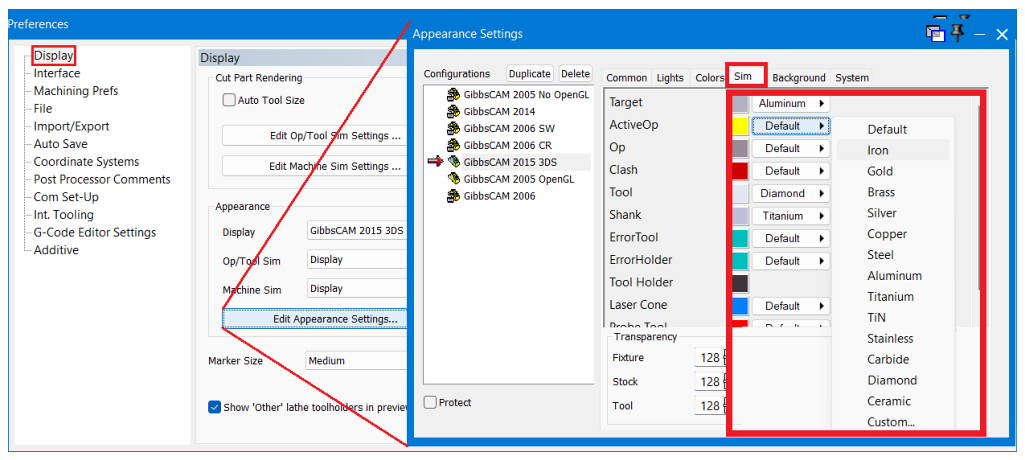
Figure 1 Assign metallic appearance from the Colors or Sim tab
Source: What's New in GibbsCAM 2026, p. 18
3. If the result is unclear, revise one appearance entry at a time.
Step 4 - Preserve the Configuration
1. Confirm that stock, fixtures, tools, and result states remain easy to distinguish.
2. Save or export the interface configuration according to the shop's standard process when the settings must be reused.
Expected Result
• The selected item or Simulation state displays the assigned color and metallic appearance.
• Other appearance entries remain unchanged unless they were edited separately.
• The visual treatment improves identification without changing model or machining data.
Related Video
Best Practices
• Use metallic rendering to improve recognition, not to represent certified material properties.
• Keep collision and error states visually distinct from normal stock and tooling.
• Edit one entry at a time and confirm the result in the intended display mode.
• Duplicate or save the appearance configuration before making shop-wide changes.
Troubleshooting
• Problem: Metallic rendering does not appear on the expected item.
Cause
• The appearance was assigned to the wrong Colors or Sim entry.
• A different entry controls the displayed item or state.
Resolution
Identify the active item or Simulation state, edit its controlling entry, and refresh the workspace or Simulation.
• Problem: A Simulation state uses the wrong appearance.
Cause
• The change was made on the Colors tab instead of the Sim tab.
• A different Simulation state is active during review.
Resolution
Open the Sim tab, edit the active state such as Target, ActiveOp, Op, or Clash, and replay the Simulation.
• Problem: The appearance makes items difficult to distinguish.
Cause
• Several adjacent items use similar colors or metallic choices.
• A collision or error state is too similar to a normal state.
Resolution
Restore contrasting colors or metallic choices and review the complete Simulation state set before saving the configuration.
• Problem: The change is missing on another workstation.
Cause
• The appearance configuration was changed only on the current system.
• The other workstation is using a different configuration.
Resolution
Save or export the approved interface settings and load the same appearance configuration on the other workstation.
Related Articles
• How to Save and Reuse Custom Interface Settings
Explore More from CAMCO
Visit the CAMCO website to learn more about:
• Downloads and Helpful Resources
Keywords
GibbsCAM 2026, metallic rendering, Appearance Settings, Colors tab, Sim tab, Simulation appearance, Target, ActiveOp, Clash, display configuration
Was this article helpful?
That’s Great!
Thank you for your feedback
Sorry! We couldn't be helpful
Thank you for your feedback
Feedback sent
We appreciate your effort and will try to fix the article