Summary
In GibbsCAM 2026, Undo and Redo on the Quick Access toolbar are pulldown menus. Each menu lists the actions currently available and shows how many actions will be applied when a range is selected.
Table of Contents
- What Changed in GibbsCAM 2026
- Before You Begin
- Procedure
- Related Video
- Best Practices
- Troubleshooting
- Related Articles
What Changed in GibbsCAM 2026
Important: Selecting an action also selects every newer action above it in that Undo or Redo list. Save the part before applying a large history change.
Before You Begin
• Use GibbsCAM 2026 and open the part whose recent actions you need to review.
• Save the current part or create a backup before applying several history actions.
• Identify the model or programming state you want to restore.
• Stop if the required action is not visible; do not infer actions beyond the displayed history.
Procedure
Step 1 - Open the History Pulldown
1. On the Quick Access toolbar, open the arrow beside Undo or Redo.
2. Read the listed actions from the most recent action downward.
Step 2 - Select the Required Action Count
1. Move the cursor down the list until the intended stopping action is highlighted.
2. Check the Undo or Redo action count shown at the bottom of the pulldown.
3. Confirm that every highlighted action should be applied.
Step 3 - Apply and Verify the History Change
1. Select the highlighted range to apply those Undo or Redo actions.
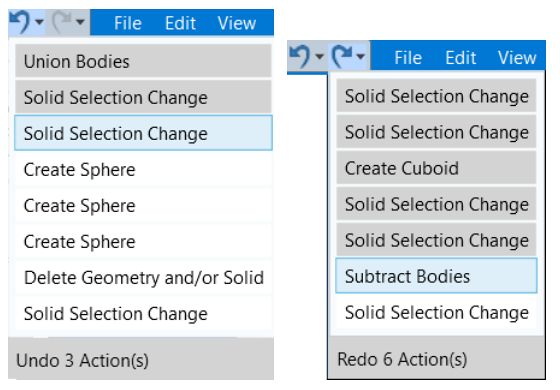
Figure 1 Select multiple history actions from one pulldown
Source: What's New in GibbsCAM 2026, p. 19
2. Inspect geometry, solids, selections, operations, and other affected programming state.
3. Use the opposite history command only when its list shows the action needed to restore the prior state.
Step 4 - Save the Confirmed State
1. When the intended state is restored, save the part with an appropriate revision or filename.
2. Recalculate or revalidate affected operations before posting or release.
Expected Result
• The pulldown lists actions available for Undo or Redo.
• The displayed count matches the highlighted range.
• The part returns to the intended recoverable state after the selection is applied.
Related Video
Best Practices
• Save before applying a long Undo or Redo range.
• Read the complete highlighted list and action count before selecting it.
• Verify geometry, operations, and selection state after a history change.
• Use named part revisions when the desired state is too important to depend only on action history.
Troubleshooting
• Problem: Undo or Redo applies more actions than intended.
Cause
• The cursor highlighted a longer range than expected.
• The action count was not checked before the selection was applied.
Resolution
Open the opposite history menu, select only the range that restores the prior state, and verify the part before continuing.
• Problem: The required action is not listed.
Cause
• The action is outside the available recoverable history.
• A later save, close, or workflow change may have altered the available list.
Resolution
Stop using history navigation and restore an appropriate saved part revision or backup.
• Problem: Redo is unavailable after other changes are made.
Cause
• A new edit created a different action branch.
• The prior undone actions are no longer recoverable in the displayed Redo list.
Resolution
Use a saved revision or backup to recover the earlier state, then repeat only the verified actions needed.
• Problem: The model looks correct but operations are no longer current.
Cause
• The history change affected geometry, selections, tools, or process inputs.
• Affected operations have not been recalculated or revalidated.
Resolution
Review all dependent operations, regenerate as required, and repeat Simulation and posted-code checks before release.
Related Articles
• How to Save and Reuse Custom Interface Settings
Explore More from CAMCO
Visit the CAMCO website to learn more about:
• Downloads and Helpful Resources
Keywords
GibbsCAM 2026, Undo history, Redo history, action history, Quick Access toolbar, Undo multiple actions, Redo multiple actions, Ctrl Z, Ctrl Y
Was this article helpful?
That’s Great!
Thank you for your feedback
Sorry! We couldn't be helpful
Thank you for your feedback
Feedback sent
We appreciate your effort and will try to fix the article