Summary
GibbsCAM 2026 adds By Program Time to Simulation Settings > Update Control. The option changes replay pacing so the Simulation approximately reflects machining-time proportions.
Table of Contents
What Changed in GibbsCAM 2026
Important: By Program Time is an approximate review mode. It is not a verified posted cycle time and does not include every machine- or control-specific timing effect.
Before You Begin
• Use GibbsCAM 2026 and prepare the operations or machine sequence to simulate.
• Confirm stock, tools, fixtures, machine components, and operation order before replay.
• Save the part and record the current Simulation settings when they must be restored.
• Use the approved posted-output or machine-time process when production timing must be verified.
Procedure
Step 1 - Open Simulation Settings
1. Open the required Simulation or Machine Simulation and locate its Sim Rendering dialog.
2. Right-click the title bar of the Sim Rendering dialog and choose Settings.
Step 2 - Select By Program Time
1. In Simulation Settings, open the Update Control pulldown.
2. Choose By Program Time and apply or close the settings dialog.
Step 3 - Replay and Review
1. Replay the Simulation from the required starting point.
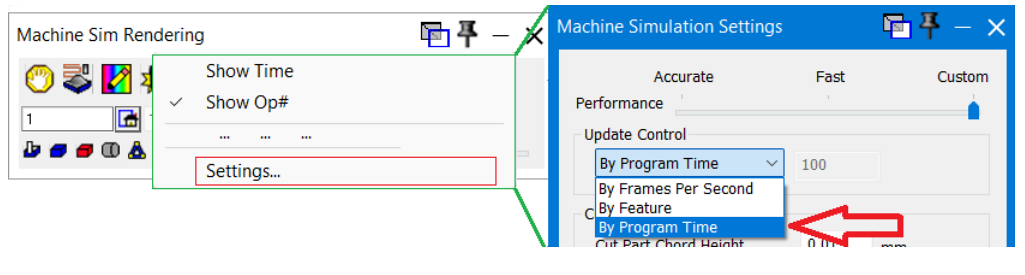
Figure 1 Choose By Program Time for approximately time-proportional replay
Source: What's New in GibbsCAM 2026, p. 19
2. Review the relative pacing of cutting moves, non-cutting moves, operation changes, and the complete sequence.
3. Pause as needed to inspect motion, stock removal, and clearance; do not infer verified cycle time from replay duration alone.
Step 4 - Compare Other Update Controls When Needed
1. Return to Update Control and select another mode when a frame-, feature-, or display-focused review is more useful.
2. Restore the approved Simulation setting before saving shared interface or review configurations.
Expected Result
• Update Control is set to By Program Time.
• Replay pacing approximately reflects machining-time proportions across the sequence.
• The user treats the result as a review aid rather than verified production cycle time.
Best Practices
• Use By Program Time to review relative pacing across operations and motion types.
• Use other Update Control modes when visual detail or display performance is the main objective.
• Validate stock, tools, fixtures, and machine setup before interpreting replay behavior.
• Verify production timing with the approved posted-output and machine-time method.
Troubleshooting
• Problem: By Program Time is not available.
Cause
• The installed GibbsCAM build predates the GibbsCAM 2026 option.
• The wrong settings dialog or Update Control pulldown is open.
Resolution
Confirm GibbsCAM 2026, open Settings from the Sim Rendering title bar, and review the Update Control choices again.
• Problem: Replay does not appear time-proportional.
Cause
• Update Control is set to another mode.
• The comparison is based on visual path length rather than the programmed motion timing.
Resolution
Confirm By Program Time is selected and compare relative pacing across the complete sequence rather than one short move.
• Problem: Replay is difficult to inspect at the current pace.
Cause
• Program-time pacing is not ideal for close visual inspection of the selected area.
• The sequence includes large differences between cutting and non-cutting motion.
Resolution
Pause at the area of interest or temporarily choose another Update Control mode for detailed review.
• Problem: Replay duration does not match observed machine cycle time.
Cause
• By Program Time is intended to approximately match machining time.
• Machine acceleration, dwell, tool changes, control behavior, and other machine-specific factors can affect actual time.
Resolution
Use the replay for relative pacing only and verify production timing with the approved posted-output and machine-time process.
Related Articles
• Recommended Simulation Settings
• Create a Custom Stock Body for More Accurate Simulation
Explore More from CAMCO
Visit the CAMCO website to learn more about:
• Downloads and Helpful Resources
Keywords
GibbsCAM 2026, Simulation Settings, Machine Simulation, Update Control, By Program Time, Sim replay, machining time, replay pacing, cycle time review
Was this article helpful?
That’s Great!
Thank you for your feedback
Sorry! We couldn't be helpful
Thank you for your feedback
Feedback sent
We appreciate your effort and will try to fix the article