Summary
GibbsCAM 2026 expands supported tool-axis tilting with AutoTilt for bullnose tools, Tilted into plane, Tilt tool in a user defined plane, and an updated automatic tilting kernel. Use these controls to reduce unnecessary degrees of freedom and stabilize machine motion.
Table of Contents
What Changed in GibbsCAM 2026
Important: Regenerating an existing toolpath with the updated tilting kernel can change tool-axis and rotary motion. Compare the complete result and posted output with a saved baseline before release.
Before You Begin
• Use GibbsCAM 2026 with the required 5-Axis and a supported operation with tool-axis tilting.
• Use a CAMCO-approved machine definition and production postprocessor.
• Define accurate tools, holders, part geometry, fixtures, rotary limits, and collision settings.
• Save a copy of the part and retain the existing calculated operation and posted output as a baseline.
Procedure
Step 1 - Record the Baseline
1. Duplicate the affected operation before changing its tool-axis controls.
2. Record the tool, selected geometry, tilting method, limits, links, rotary motion, and estimated cycle time.
3. Simulate and save the baseline posted output for comparison.
Step 2 - Use AutoTilt with a Bullnose Tool
1. Define the bullnose tool and holder accurately.
2. Open the Tool axis control tab and select the supported AutoTilt option.
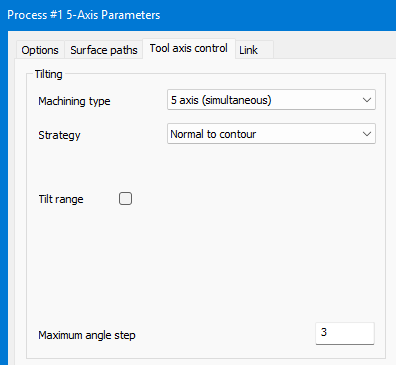
3. Regenerate and inspect tool contact, holder clearance, tilt changes, and surface quality.
Step 3 - Constrain Tilting to a Plane
1. Select Tilted into plane when the tool axis should be projected into the plane defined by the normal of a selected direction.
2. Align the plane normal with the appropriate machine rotary axis when rotational movement should be limited to that axis.
3. Use Tilt tool in a user defined plane when one degree of freedom should be removed and either rotary or tilt motion should be avoided.
4. Regenerate and inspect the complete tool-axis and machine-motion result.
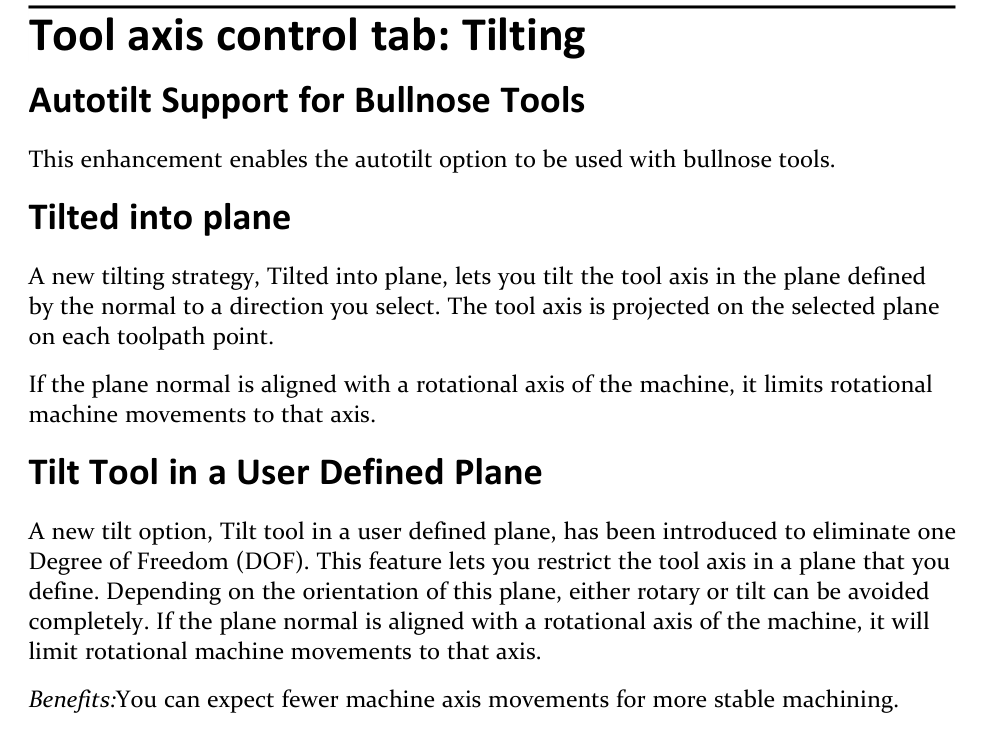
Figure 1 Restrict tool-axis motion with plane-based tilting
Source: What's New in GibbsCAM 2026, p. 44
Step 4 - Regenerate Existing Toolpaths Carefully
1. Open and fully regenerate the duplicated operation in GibbsCAM 2026 to apply the updated automatic tilting kernel.
2. Compare tool-axis vectors, rotary travel, reversals, links, clearance, cycle time, and posted motion with the saved baseline.
3. Restore or revise settings if the new result does not meet the approved machining requirement.
Step 5 - Validate the Output
1. Run Op Simulation and Machine Simulation with the production stock, fixtures, tool, and holder.
2. Review cutting contact, links, clearance, rotary travel, machine limits, reversals, and singularities.
3. Post with the approved postprocessor and complete the shop's controlled prove-out before production release.
Expected Result
• Bullnose AutoTilt maintains acceptable cutting contact and holder clearance.
• The selected plane constraint removes the intended degree of freedom and stabilizes motion.
• Regenerated and posted motion is reviewed against the baseline and remains within machine limits.
Best Practices
• Change one tilting control at a time and retain the original operation for comparison.
• Define the complete tool and holder before calculating AutoTilt.
• Choose a plane and normal that match the approved machine kinematics.
• Treat every regenerated existing path as revised motion requiring full validation.
Troubleshooting
• Problem: AutoTilt is unavailable for the bullnose tool.
Cause
• The operation, installed build, or licensed strategy does not support the feature.
• The tool is not defined as a valid bullnose tool or the selected tilting method is incompatible.
Resolution
Confirm the supported operation and license, correct the complete tool definition, and select a compatible AutoTilt method before recalculating.
• Problem: AutoTilt creates unsafe contact or a collision.
Cause
• Tool, holder, surface, fixture, or collision geometry is incomplete or inaccurate.
• The available tilt range or local part clearance is insufficient.
Resolution
Stop release. Correct the complete setup, restrict or revise tilting, and rerun full Op and Machine Simulation.
• Problem: Plane-constrained motion is unexpected or exceeds machine limits.
Cause
• The selected direction, plane normal, or user-defined plane does not match the intended machine axis.
• Machine rotary limits or kinematic data are incorrect or incomplete.
Resolution
Correct the plane definition and machine data, regenerate, and verify rotary travel and posted motion with the approved machine and postprocessor.
• Problem: A regenerated existing path differs unexpectedly from the baseline.
Cause
• The updated automatic tilting kernel produced a different valid solution.
• Tool, geometry, tolerance, tilting, collision, or linking inputs changed during migration.
Resolution
Compare every input and the complete motion with the saved baseline. Correct unintended changes and approve the revised path only after full simulation and posted-code review.
Related Articles
• Recommended Simulation Settings
• How to Create a Pack and Go File
Explore More from CAMCO
Visit the CAMCO website to learn more about:
• Downloads and Helpful Resources
Keywords
GibbsCAM 2026, 5-Axis, tool-axis tilting, AutoTilt, bullnose tool, Tilted into plane, user defined plane, automatic tilting kernel, rotary motion
Was this article helpful?
That’s Great!
Thank you for your feedback
Sorry! We couldn't be helpful
Thank you for your feedback
Feedback sent
We appreciate your effort and will try to fix the article